
Purchase Order Software for Contractors 2026
Purchase order software for contractors links POs, vendors, jobs and bills so you can track committed costs, control purchases, and protect project margins.
by Eng. José Manuel Siso Colmenares • 6/9/2026 · Updated: 10/15/2026
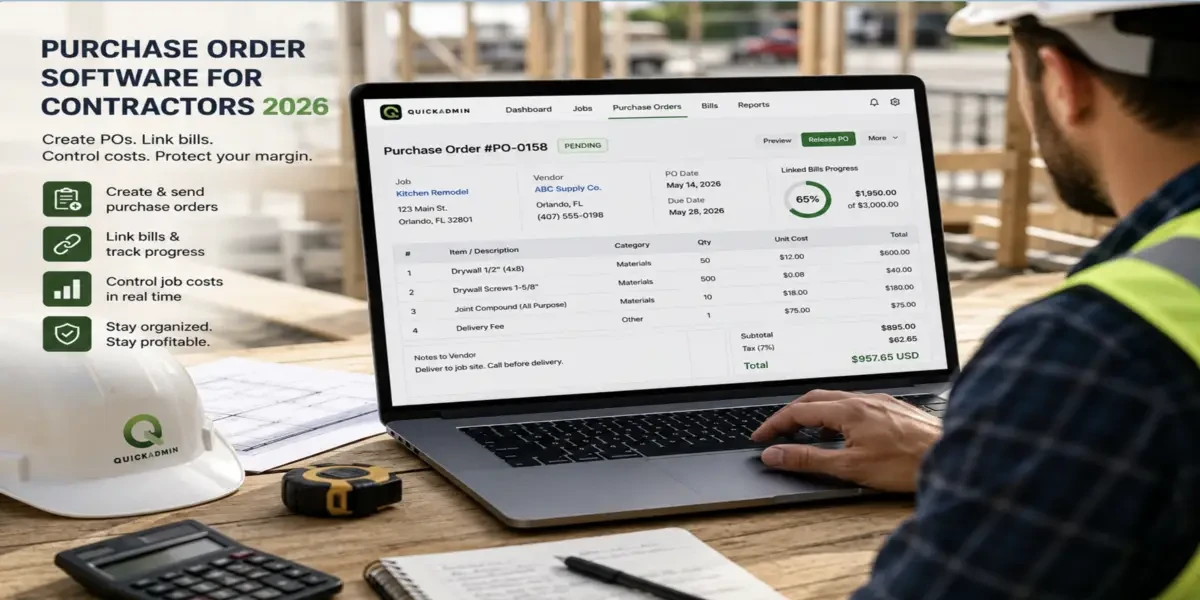
Purchase Order Software for Contractors 2026
Updated: Oct 15, 2026.
A contractor can estimate a job accurately and still lose control of the margin after the work begins.
The problem often starts with a purchase that seems too small to worry about. A supplier gets a phone call for another bundle of shingles. A plumber orders additional fittings by text. A superintendent tells a vendor to send another pallet of material. The material arrives, the project keeps moving, and the bill shows up two weeks later. Nobody remembers whether the price was approved, which job it belonged to, or whether the amount matches what was originally ordered.
That is what purchase order software is supposed to prevent.
Quick answer: Purchase order software for contractors records what you agreed to buy before the vendor bill arrives. The strongest workflow connects the job, vendor, purchase order, supporting documents and vendor bill so you can compare planned cost, committed cost and actual cost before the project margin disappears.
QuickAdmin includes Purchase Orders in its Premium contractor workflow together with jobs, estimates, change orders, bills and expenses. See current plan limits on QuickAdmin pricing.
A purchase order is a committed cost
A purchase order represents a commitment.
A vendor bill represents what the supplier is actually charging you.
That difference is one of the most useful concepts in construction job costing. Procore defines committed costs as amounts a project has formally agreed to spend through contracts, subcontracts or purchase orders, even though the money may not yet have been paid. Oracle project costing uses the same split: open purchase orders remain committed costs, while actual project costs are recognized later through receipts, invoices and accounting transactions. Oracle project costing
Think about the financial lifecycle like this:
Estimate budget
↓
Purchase Order
Committed cost
↓
Vendor Bill
Actual vendor charge
↓
QuickBooks
Bill-level connection
↓
Payment
Cash leaves the business
The purchase order stays on the job as the authorization. The bill is the actual charge, and that bill is the document QuickAdmin connects to QuickBooks.
The Purchase Order Control Loop
A clean contractor purchasing workflow looks like this:
Budget
↓
Purchase Order
Committed cost
↓
Vendor Bill
Actual vendor charge → QuickBooks
↓
Compare PO vs Bill
↓
Actual job cost
↓
Job margin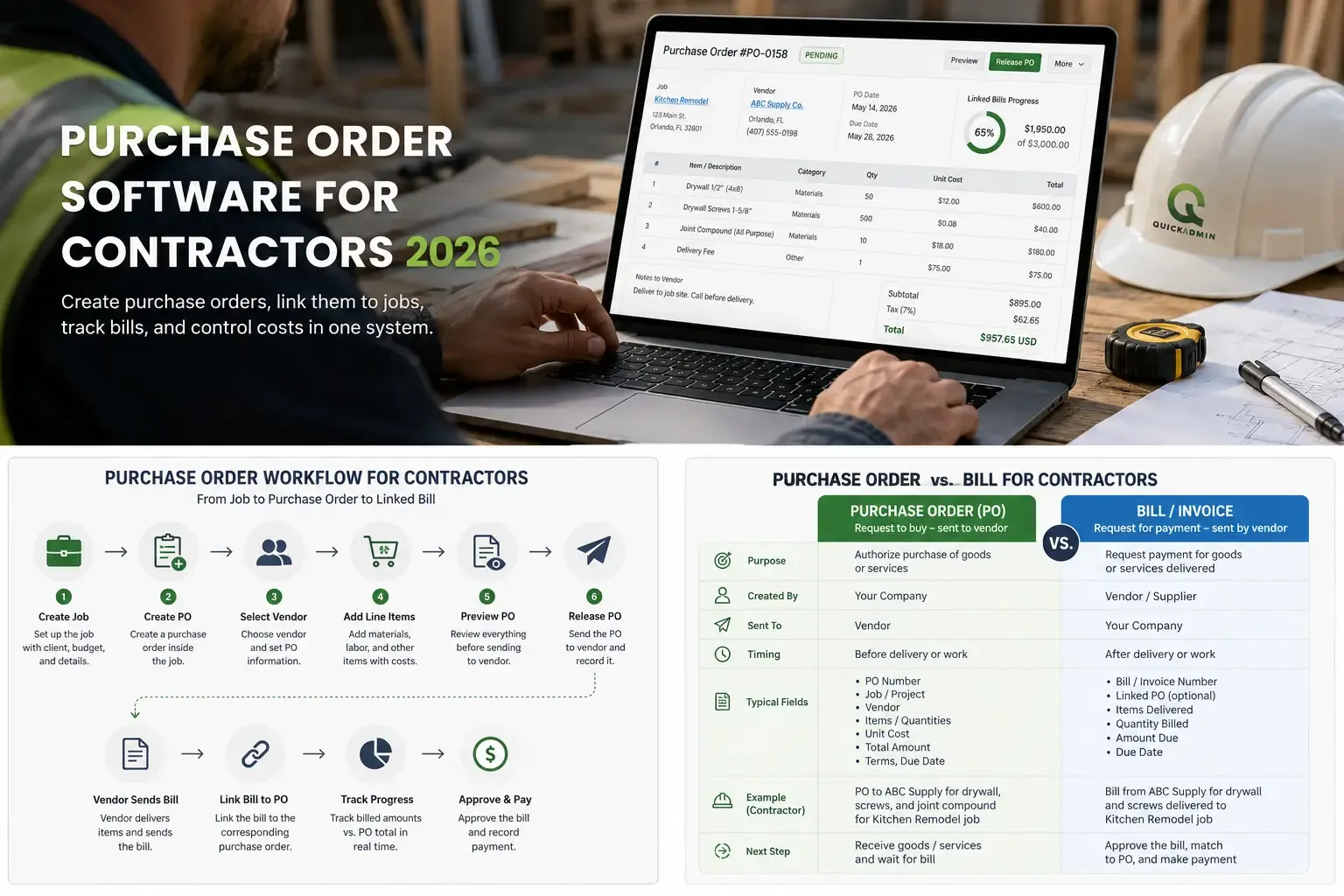
We call this the Purchase Order Control Loop: Budget → PO commitment → Vendor bill → Actual cost → Job margin.
The PO tells you what you authorized. The bill tells you what the vendor is charging. The job costing report tells you what the job actually cost. Keeping those three questions separate makes financial control much easier.
Why purchase orders matter more when material prices move
Purchase orders become especially useful when material costs are volatile.
Associated General Contractors reported that the producer price index for materials and services used in nonresidential construction rose 3.2 percent from September 2024 to September 2025. AGC, November 2025
From December 2024 to December 2025, AGC reported that same index up 3.3 percent, with double-digit increases in aluminum, steel and copper. AGC, January 2026
The pressure continued in 2026. AGC reported inputs to new nonresidential construction were 8.9 percent higher in August 2026 than a year earlier. AGC, September 2026
When prices move, “we normally pay about $4,000 for that” is a weak record. A PO creates a dated record of vendor, item, quantity, unit price, total authorized amount, job and supporting documentation. That gives you something concrete to compare against when the bill arrives.
What should a contractor purchase order include?
A useful construction PO should contain enough information that the supplier and project team understand exactly what has been authorized.
In QuickAdmin, the purchase order workflow can include the PO title, job, vendor or subcontractor, billing information, PO number, dates, line items, cost information, notes to vendor, scope of work, attachments and related bills.
A typical material PO might look like this:
| Item | Quantity | Unit price | PO total |
|---|---|---|---|
| Architectural shingles | 45 squares | $112 | $5,040 |
| Ridge caps | 12 bundles | $68 | $816 |
| Underlayment | 8 rolls | $74 | $592 |
| Delivery | 1 | $185 | $185 |
| Purchase order total | $6,633 |
The document belongs to a specific job. Without the job connection, a purchase order is a PDF. With the job connection, it becomes part of the project’s financial history.
Lost purchase orders create hidden margin problems
The biggest risk is usually the missing financial context.
Imagine a roofing project with an original material allowance of $18,500. The first supplier order is PO 001 for $16,900. The crew then needs additional shingles on PO 002 for $2,600. Committed material cost is now $19,500, already $1,000 over the original material budget.
That information is useful while the project is active. If the second order only exists as a text message, you may discover the overrun when the supplier bill arrives. By then, the client may already have received the final invoice.
Purchase order insight: A PO exposes committed cost before that commitment becomes an accounting surprise.
How purchase orders work in QuickAdmin
Purchase Orders are a Premium feature, together with change orders, estimate budgets, and bills and expenses by job. Free covers the core estimate and invoice workflow within plan limits. See pricing.
Step 1: Start with the job
The purchasing workflow should begin from the project context. Examples:
Oak Street Bathroom Remodel
Building B Plumbing Rough In
Lakeview Roof Replacement
Unit 204 Renovation
Connecting a PO to a job makes later review much easier. You can answer which project ordered it, which vendor received it, what you authorized, and which bill came back.
If you are still building the job workflow itself, start with Estimate Software for Contractors.
Step 2: Create the purchase order
Create the PO and select the job and the vendor or subcontractor. Enter a clear title.
Use titles such as “Roofing Materials Phase 1”, “Bathroom Plumbing Fixtures”, “Building B Rough In Materials”, or “Kitchen Cabinet Hardware”. Clear PO titles become more valuable as the number of active projects grows.
Step 3: Add the items, quantities and unit prices
Enter exactly what is being authorized.
| Description | Qty | Unit | Unit price | Total |
|---|---|---|---|---|
| 3 inch PVC pipe | 240 | LF | $4.25 | $1,020 |
| 3 inch PVC fittings | 30 | EA | $8.75 | $262.50 |
| Pipe hangers | 60 | EA | $3.15 | $189 |
| Delivery | 1 | LS | $95 | $95 |
| Total PO | $1,566.50 |
This is much stronger than telling the supplier to send whatever the crew needs for Building B.
Step 4: Add scope and vendor notes
You may also use a purchase order for a subcontractor or a clearly defined vendor service. A scope might say:
Supply materials for Building B plumbing rough in according to approved material list.
Deliver to project loading area.
Contact superintendent before delivery.
Do not substitute listed products without written approval.
That additional context reduces misunderstanding.
Step 5: Attach supporting documentation
QuickAdmin lets contractors keep documents and photos connected with job workflows. For a PO, useful supporting documents include the supplier quote, product specification, material selection, delivery information, revised price sheet and approval email.
Step 6: Preview and release the purchase order
Before sending it, verify the job, vendor, quantities, unit prices, scope, delivery information and total. Then release the PO to the vendor. The PO is now the record of what you authorized.
Connect the vendor bill
This is where the workflow becomes useful for job costing.
Suppose PO 014 was approved at $6,633 and the vendor later sends Bill 88917 for $7,048. The difference is $415 over the PO. You now have a question to investigate before the difference disappears into general job cost: additional material, a price change, another delivery, tax, a substitution, or an unauthorized item.
QuickAdmin connects purchase orders with vendor bills and includes PO Bills Progress, so the PO stays useful after the order has been placed. QuickBooks describes the same sequence in its own purchasing help: an accepted purchase order is later connected to a bill or expense when the vendor fulfills the order. QuickBooks purchase orders and bills
The QuickBooks connection in QuickAdmin follows that same point in the loop. The purchase order remains the committed cost on the job. The vendor bill is the actual charge, and that bill is what connects to QuickBooks.
Budget vs purchase order vs bill vs invoice
These documents answer different questions.
| Document | Question |
|---|---|
| Estimate budget | What did we expect this job to cost? |
| Purchase order | What have we authorized or committed to spend? |
| Vendor bill | What is the supplier actually charging us? |
| QuickBooks | Where does that vendor bill sit in the books? |
| Client invoice | What are we charging the customer? |
| Job costing | Did the project actually make money? |
In one sentence: An estimate predicts cost, a purchase order commits cost, a vendor bill records what you owe, and a client invoice records what the customer owes you.
Purchase order vs bill
A purchase order comes first. It tells the vendor what you intend to purchase. A bill comes later. It tells you what the vendor says you owe.
PO:
100 light fixtures × $42
Authorized amount: $4,200

Vendor bill:
100 light fixtures × $44
Bill amount: $4,400
The $200 difference is the variance a connected PO and bill workflow is built to expose. Once that bill exists, it is the record that can move into QuickBooks.
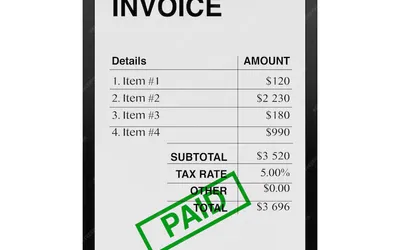
Purchase order vs invoice
A purchase order moves from you to your vendor. An invoice moves from you to your customer when you are requesting payment.
QuickBooks makes the same distinction: vendor bills record what your business owes suppliers, while customer invoices record what customers owe your business. QuickBooks bills vs invoices
For the customer side of the workflow, see How to Make an Invoice and QuickBooks Invoice Integration for Contractors.
Purchase orders and job costing
Purchase orders become much more valuable when they are part of job costing.
Suppose the estimate contained $12,500 of material cost, active purchase orders total $13,300 of committed material cost, and received vendor bills currently total $9,850. Those are three different numbers. The useful view is:
Budget:        $12,500
Committed:     $13,300
Actual bills:   $9,850
You can already see that the committed amount is $800 above budget even though every supplier bill has not arrived yet. That is why construction systems such as Procore treat purchase orders as committed costs and recognize actual cost when the bill, receipt or accounting transaction lands. Procore committed costs
For the larger workflow, see Job Costing Software for Small Contractors.
Purchase orders and change orders are different controls
A purchase order controls what you are buying. A change order controls what the client contract is changing. They can interact.
Imagine the owner upgrades countertops. The customer approves Change Order 004 for +$3,200. You then issue Purchase Order 017 to the stone supplier for $2,050. The change order is additional revenue on the client side. The purchase order is additional committed cost on the vendor side. Together they show whether the change actually protects margin.
See Construction Change Order Template 2026.
Roofing example: additional materials mid job
A roofing crew discovers that the original shingle quantity will not finish the project. The informal path is a phone call, an extra order, more work, and a vendor bill the office discovers later. The controlled path is:
Identify shortage
→ Create PO against the roof job
→ Add supplier and quantities
→ Release PO
→ Receive material
→ Link vendor bill
→ Compare against the material budget
→ Connect that bill to QuickBooks
The contractor knows the additional committed cost before the job closes.
Landscaping example: three suppliers, one project
A landscaping contractor may buy plants from one nursery, pavers from a second supplier, and irrigation materials from a third. Each supplier gets a separate PO tied to the same job. The project history shows the purchasing trail by vendor. When the bills arrive, you have a clear record to compare, and each bill can connect to QuickBooks without mixing three vendors into one undocumented receipt pile.
Plumbing example: comparing parts to allowance
Suppose the estimate allows $4,500 for plumbing materials. PO activity reaches $2,300, $1,450 and $1,100. Total committed cost is $4,850, already $350 above the material allowance. You do not need every supplier invoice to be paid before you know the estimate is under pressure. That same record also improves the next plumbing estimate.
Purchase orders on mobile jobsites
Contractors do not always order material from an office. The decision may happen on the roof, inside the mechanical room, at the supplier counter, from the truck, or during a walkthrough.
QuickAdmin is available as an iOS app, an Android app, and a Progressive Web App, so a purchase order can be created from a compatible phone instead of waiting to “enter it later.” For the web app architecture, see PWA Billing, Estimating and Time Tracking Software.
Does QuickAdmin sync purchase orders with QuickBooks?
The purchase order stays in QuickAdmin. It is the committed cost on the job.
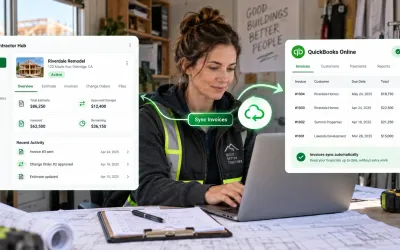
The QuickBooks connection is the vendor bill. When the supplier charges you, that bill records the actual cost, and that bill is the transaction QuickAdmin connects to QuickBooks.
Purchase order → committed cost → stays in QuickAdmin
Vendor bill    → actual charge  → connects to QuickBooks
Client invoice → customer owes  → QuickBooks invoice synchronization (Premium)
Premium also includes QuickBooks invoice synchronization for the customer invoice. That is a different document. It moves what the client owes you. It does not replace the bill, and it does not send the purchase order itself to QuickBooks.
Are purchase orders available on QuickAdmin Free?
Purchase Orders are on Premium.
Free is for testing the core estimate and invoice workflow within plan limits. Premium is where the contractor financial workflow appears, including:
Change Orders
Purchase Orders
Estimate budgets
Bills and expenses by job
QuickBooks invoice synchronization
Bill-level QuickBooks connection
The call to action for this guide is to open QuickAdmin and use Purchase Orders on Premium. A Free account can prove estimates and invoices. It does not include purchase orders. Compare plans.
Purchase order software vs spreadsheets
A spreadsheet can calculate purchase totals. It does not create the relationships between the documents.
| Workflow | Spreadsheet | QuickAdmin |
|---|---|---|
| Create PO | Manual | Yes |
| Link PO to job | Manual reference | Yes |
| Associate vendor | Manual | Yes |
| Store PO line items | Yes | Yes |
| Attach supporting documentation | Separate folder | Connected workflow |
| Related bills | Manual lookup | Linked workflow |
| PO Bills Progress | Manual formula | Available in the PO workflow |
| QuickBooks connection | Retype the bill | Vendor bill connects to QuickBooks |
| Estimate, invoice and change order context | Separate files | Same contractor platform |
The benefit is document relationships. The PO, the bill, the job and the books stay on one trail.
The purchase order checklist before you release it
Before sending a PO to a supplier, confirm:
- Correct job.
- Correct vendor.
- Clear PO title and number.
- Accurate item descriptions.
- Correct quantities.
- Correct units.
- Correct unit prices.
- Delivery location.
- Scope or vendor notes.
- Supporting quote attached when relevant.
- Correct total.
- Appropriate approval before release.
A five minute review is cheaper than arguing over a vendor bill after the material is already installed.
Related guides
- Estimate Software for Contractors
- Job Costing Software for Small Contractors
- Construction Change Order Template 2026
- How to Make an Invoice
- QuickBooks Invoice Integration for Contractors
- PWA Billing, Estimating and Time Tracking Software
Conclusion: a PO should protect the job before the bill arrives
Purchase order software is valuable because it captures a financial commitment before that commitment turns into an actual cost.
Estimate
→ Budget
→ Purchase Order (committed cost)
→ Vendor Bill (actual charge)
→ QuickBooks (bill connection)
→ Actual Job Cost
→ Invoice
→ Profit Review
The PO should know which job, which vendor, what was ordered, what price was authorized, which bill came back, and how that bill compares with the budget.
QuickAdmin connects purchase orders with estimates, jobs, bills, change orders, invoices and job costing. The vendor bill is the point where actual cost, and the QuickBooks connection, enter the picture.
Create your free QuickAdmin account to start estimating and invoicing. Upgrade to Premium when you need purchase orders, change orders, job bills and the bill-level QuickBooks connection on the same project.
FAQ
What is purchase order software for contractors?
Purchase order software for contractors helps document purchases before vendor bills arrive. It connects the project, vendor, materials or services, quantities, prices, attachments and later vendor bills in one purchasing workflow.
Is a purchase order an actual job cost?
A purchase order represents a committed cost. The vendor bill or expense records the actual amount charged.
Can QuickAdmin link purchase orders to jobs?
Yes. QuickAdmin purchase orders can be associated with jobs so purchasing information remains connected to the project.
Can I create a bill from a purchase order in QuickAdmin?
QuickAdmin supports purchase order and bill workflows that let contractors keep related vendor charges connected and review PO Bills Progress.
Does QuickAdmin sync purchase orders with QuickBooks?
Purchase orders stay in QuickAdmin as committed costs. The QuickBooks connection in this workflow is the vendor bill, which records the actual charge. Customer invoices use a separate Premium feature, QuickBooks invoice synchronization.
Are purchase orders available on QuickAdmin Free?
Purchase Orders are included in QuickAdmin Premium.
Can I manage purchase orders from my phone?
Yes. Manage purchase orders from the QuickAdmin iOS app on the App Store, the Android app on Google Play, or the web and Progressive Web App on a compatible phone.
Why should I link a bill to a purchase order?
The purchase order shows what you authorized. The bill shows what the vendor charged. Connecting the two makes price, quantity and scope differences easier to detect before they disappear into total job cost. That bill is also the record that connects to QuickBooks.