
Job Costing Software for Small Contractors
Learn how small contractors use job costing software to track labor, materials, bills, purchase orders, invoices, and profit by job.
by Eng. José Manuel Siso Colmenares • 6/15/2026
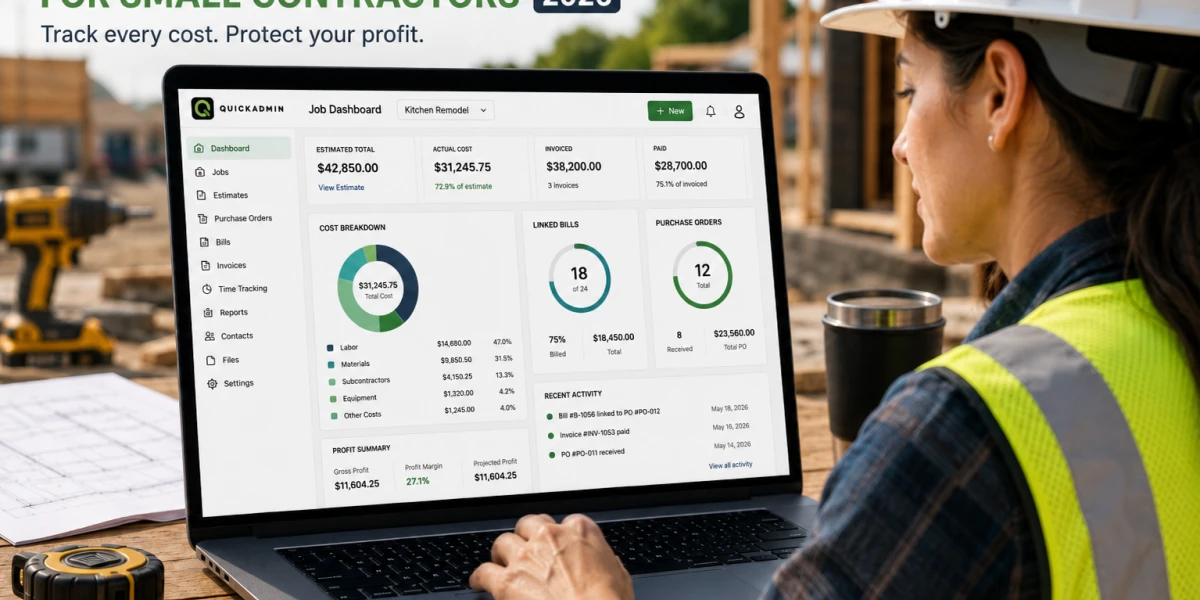
Job Costing Software for Small Contractors
Updated: Jun 15, 2026.
You finished the job, the client paid the invoice, the crew moved on to the next project, and your bank account looks fine. On paper, it was a win.
Then the bills start arriving. The supplier invoice came in higher than expected. The subcontractor tacked on extra labor. The material order was split across two deliveries with a second delivery fee. Your crew logged more hours than you planned. And the change work the client approved verbally never made it onto a clear invoice. Suddenly the job that looked profitable is barely breaking even.
This is the exact gap that job costing software closes for small contractors. By the end of this guide, you will know how to track estimated cost, actual cost, purchase orders, bills, invoices, labor, change orders, and profit by job, without leaning on memory, scattered spreadsheets, or a shoebox of receipts.
Quick answer: Job costing software helps contractors compare the estimated cost of a job against the real cost of labor, materials, purchase orders, bills, subcontractors, change orders, and invoices so profit does not disappear after the work is done.
Why small contractors lose profit after the estimate is approved
Most contractors do not lose money because they are bad at the trade. They lose money because the job cost story is incomplete, the numbers that looked clean at the estimate stage never get reconciled against what actually happened in the field.
A simple estimate might look like this:
| Item | Amount |
|---|---|
| Labor | $8,500 |
| Materials | $6,200 |
| Subcontractors | $4,000 |
| Overhead and markup | $3,300 |
| Total estimate | $22,000 |
That looks clean and reassuring. But the real job often ends up looking more like this:
| Actual cost item | Original plan | Actual result |
|---|---|---|
| Labor | $8,500 | $10,250 |
| Materials | $6,200 | $7,480 |
| Subcontractors | $4,000 | $4,750 |
| Cleanup and disposal | Not separated | $620 |
| Extra delivery | Not included | $285 |
| Unbilled change work | Not tracked | $1,100 |
The invoice may still read $22,000, but it is not the same job anymore. The profit you priced in has quietly leaked out through overruns and untracked extras, and that is exactly where job costing becomes essential.
The difference between looking busy and being profitable
A small contractor can stay booked solid and still lose money. It usually happens when:
- Estimates are approved, but costs are not tracked.
- Purchase orders are created, but bills are not linked.
- Labor hours are worked, but not assigned to the job.
- Change orders are approved verbally, but not invoiced.
- Material overruns are absorbed by the contractor.
- Progress invoices are sent, but job profit is not reviewed.
- QuickBooks has totals, but the project detail is missing.
Revenue is not the same as profit, and a paid invoice is no guarantee that the job actually made money.
💡 Contractor rule: If you cannot compare estimated cost against actual cost by job, you are managing profit after it already moved.
What job costing software should track
Good job costing software does more than list your invoices, it connects every financial piece of a project so you can see whether each job is actually profitable. For small contractors, the categories that matter most are:
- Estimate.
- Labor.
- Materials.
- Purchase orders.
- Bills.
- Subcontractors.
- Equipment.
- Disposal.
- Change orders.
- Client invoices.
- Payments.
- Cost codes.
- Gross profit.
- Remaining balance.
According to QuickBooks job costing guidance, job costing means calculating the costs connected with a project and tracking them against that job. For contractors, that usually means every material purchase, vendor bill, labor hour, and invoice needs to be connected to the right project.
Estimates
The estimate is your financial plan for the job, so it should be thorough. A complete estimate includes:
- Labor.
- Materials.
- Subcontractors.
- Equipment.
- Disposal.
- Permits.
- Overhead.
- Markup.
- Taxes when applicable.
- Exclusions.
A good estimate becomes the baseline you measure everything else against. If you planned $6,200 in materials but the job closes at $7,480, you need to know why: was it waste, a client change, a supplier price increase, a missed line item, or a mistake in the field? Job costing software is what lets you answer that question instead of guessing.
Labor
Labor is one of the easiest costs to underestimate, and one of the quietest ways profit slips away. A crew can burn margin through:
- Extra setup time.
- Slow access.
- Waiting for materials.
- Rework.
- Weather delays.
- Return trips.
- Poor scheduling.
- Extra cleanup.
- Punch list work.
- Unplanned supervision time.
Many small contractors track labor only through payroll, and that is not enough. Payroll tells you what you paid your workers; job costing tells you which job consumed those hours. For example:
| Crew member | Hours | Rate | Job cost |
|---|---|---|---|
| Lead carpenter | 28 | $42 | $1,176 |
| Helper | 32 | $26 | $832 |
| Painter | 18 | $34 | $612 |
| Total labor | 78 | $2,620 |
If those 78 hours were estimated at 55, that gap is your signal to review the job before the same overrun shows up on the next one.
Materials
Material costs can move fast. A project often starts with a clean material list, then quietly grows because of:
- Waste.
- Wrong quantities.
- Damaged materials.
- Extra delivery.
- Supplier substitution.
- Finish upgrades.
- Hidden conditions.
- Additional fasteners.
- Extra trim.
- Missing original line items.
This is why job costing software should connect materials to the job through purchase orders and bills. With that link in place, you can see at a glance:
- What was ordered.
- Which vendor supplied it.
- What was approved.
- What was billed.
- Whether the bill exceeded the purchase order.
- Whether the material cost is still within the estimate.
This is exactly where purchase orders become part of job costing.
Purchase orders
A purchase order lets you control a purchase before the bill ever arrives. For contractors, a solid purchase order should show:
- Job.
- Vendor.
- Purchase order title.
- Line items.
- Quantities.
- Unit prices.
- Notes to vendor.
- Scope of work.
- Attachments.
- PO total.
- Linked bills progress.
Example:
| PO item | Quantity | Unit price | Total |
|---|---|---|---|
| Exterior trim materials | 2 | $575 | $1,150 |
| Siding materials | 1 | $2,500 | $2,500 |
| Countertops material | 1 | $750 | $750 |
| PO total | $4,400 |
So when a vendor later sends a bill for $4,850, you can put it side by side with the approved $4,400 purchase order and catch the difference immediately. That is job cost control in action.
Bills
Bills are vendor payment requests, and on their own they are just accounting entries. To become useful job costing data, each bill should be connected to:
- Vendor.
- Job.
- Purchase order.
- Cost code.
- Bill date.
- Due date.
- Amount.
- Payment status.
- Attachments.
- Notes.
That connection is the whole point: a bill without a job is just an accounting record, but a bill tied to a job tells you where your money actually went.
Client invoices
Invoices show what you are billing the client. Job costing takes it a step further by comparing what you bill against what it actually costs to produce the work. For example:
| Job summary | Amount |
|---|---|
| Client invoices | $38,500 |
| Actual job costs | $27,900 |
| Gross profit | $10,600 |
| Gross margin | 27.5 percent |
If the estimate expected a 35 percent margin, that 27.5 percent result is your cue to dig in. The invoice was paid, but the job still underperformed, and only job costing makes that visible.
Change orders
Change orders protect the accuracy of your job costs. When the client changes the scope, the cost baseline has to change with it. Common examples include:
- Added bathroom tile upgrade.
- Extra drywall repair.
- Additional framing.
- More concrete depth.
- Electrical relocation.
- Extra painting scope.
- Material upgrade.
- Fast schedule request.
- Hidden damage repair.
If those changes are not tracked, the job can look over budget even though the client approved and agreed to pay for the extra work. Good job costing keeps these separate:
- Original estimate.
- Approved change orders.
- Actual costs.
- Invoiced amount.
- Remaining balance.
Job costing example for a small contractor
To see how this plays out, here is a realistic example from start to finish.
- Project: Unit 204 renovation
- Original estimate: $42,000
- Approved change orders: $5,800
- Revised contract value: $47,800
Estimated cost
| Cost category | Estimated cost |
|---|---|
| Labor | $14,000 |
| Materials | $10,500 |
| Subcontractors | $7,200 |
| Equipment and disposal | $1,400 |
| Total estimated cost | $33,100 |
| Expected gross profit | $14,700 |
| Expected gross margin | 30.7 percent |
Actual cost
| Cost category | Actual cost |
|---|---|
| Labor | $15,850 |
| Materials | $11,940 |
| Subcontractors | $7,650 |
| Equipment and disposal | $1,875 |
| Total actual cost | $37,315 |
| Actual gross profit | $10,485 |
| Actual gross margin | 21.9 percent |
The job is still profitable, but it missed the target margin by almost nine points, and without job costing software the contractor might never notice why.
What went wrong
A quick job cost review tells the story:
- Labor exceeded estimate by $1,850.
- Materials exceeded estimate by $1,440.
- Equipment and disposal exceeded estimate by $475.
- Subcontractors exceeded estimate by $450.
That adds up to a $4,215 cost overrun. With the numbers in front of you, you can finally ask better questions:
- Did we underestimate labor?
- Did the material takeoff miss items?
- Did we fail to bill a change order?
- Did the crew spend too much time on punch list work?
- Did the vendor bill more than the PO?
- Did the estimate need a higher contingency?
Answering those questions is how job costing quietly improves every estimate you write after it.
💡 Job costing insight: The goal is not only to know whether one job made money. The goal is to improve the next estimate before the same mistake repeats.
How to create a job costing workflow in QuickAdmin
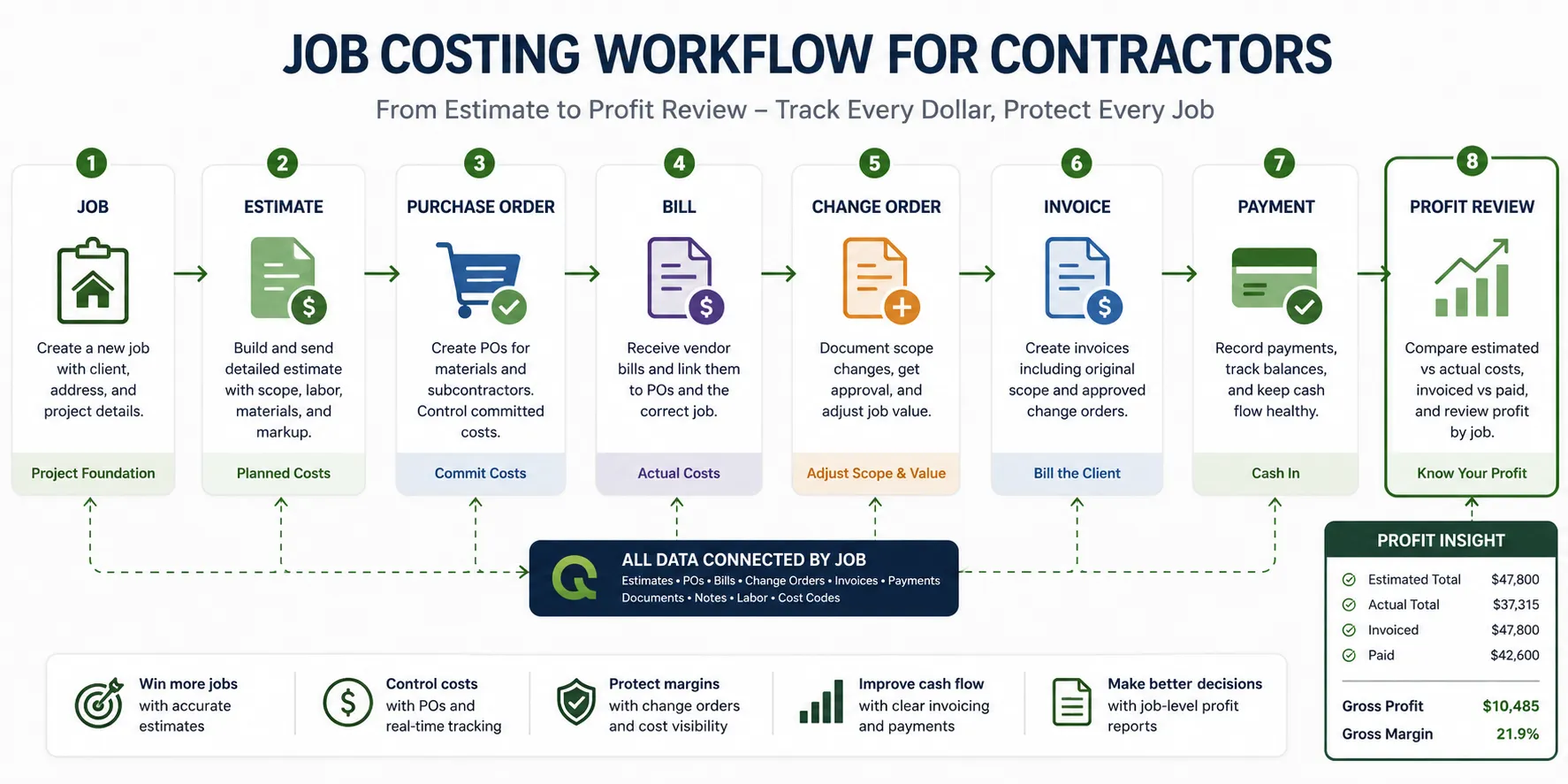
QuickAdmin works well here because it lets contractors connect estimates, invoices, purchase orders, bills, files, notes, and QuickBooks-related workflows around a single job, instead of scattering them across separate tools.
For most small contractors, the cleanest job costing workflow looks like this:
- Create the job.
- Create the estimate inside the job.
- Convert approved work into invoices.
- Create purchase orders for materials or vendors.
- Link bills to purchase orders.
- Add change orders when scope changes.
- Track payments.
- Review job cost and profit.
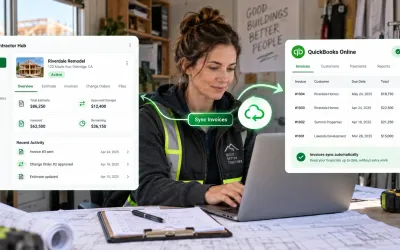
- Sync accounting related data with QuickBooks when needed.
Follow it and the job stays organized from the first estimate to the final payment. Here is each step in detail.
Step 1: Create the job
Everything starts with the job record. Use clear, specific job names, for example:
- Unit 204 renovation.
- Oak Street bathroom remodel.
- Concrete driveway replacement.
- Roof repair phase 2.
- Exterior painting package.
- Plumbing rough in, Building B.
- Commercial tenant improvement.
Then enter the project address. From here on, the job record is the hub of the whole workflow, keeping estimates, invoices, purchase orders, bills, files, notes, and client information connected in one place.
Step 2: Create the estimate inside the job
With the job created, build the estimate directly from that job record. Add:
- Estimate title.
- Job selection.
- Scope description.
- Labor.
- Materials.
- Subcontractors.
- Equipment.
- Markup.
- Notes.
- Exclusions.
This estimate becomes your planned cost baseline, the number every actual cost will later be measured against.
Step 3: Create purchase orders for approved purchases
When you need materials or vendor services, create purchase orders inside the job workflow. Add:
- Purchase order title.
- Vendor or subcontractor.
- Line items.
- Cost types.
- Quantities.
- Unit prices.
- Notes to vendor.
- Scope of work.
- Attachments.
- Due date.
This lets you control committed cost before the bill ever lands in your inbox.
Step 4: Link bills to purchase orders
When the vendor bill arrives, link it straight to its purchase order. That single connection answers a lot of questions:
- How much was approved?
- How much has been billed?
- Is the bill partial or complete?
- Is the bill higher than the PO?
- Is the remaining PO balance correct?
A linked bill is far more useful than a standalone one, because it carries the full project context with it.
Step 5: Create change orders when scope changes
Whenever the client changes the scope, create a change order. Add:
- Change order number.
- Description.
- Reason for change.
- Labor.
- Materials.
- Subcontractor cost.
- Schedule impact.
- Approval details.
- Notes and exclusions.
Then connect the approved change work to the invoice. This keeps the job cost report honest, because a job should never look over budget when the client approved more scope and agreed to pay for it.
Step 6: Create invoices inside the job
Create invoices from inside the job record, too. Add:
- Invoice title.
- Job selection.
- Billing period.
- Payment terms.
- Scope description.
- Labor and materials.
- Approved change orders.
- Notes and exclusions.
This keeps your revenue tied to the same project where your costs live, which is the entire foundation of job costing.
Step 7: Review job cost weekly
Do not wait until the project is finished to look at the numbers. Review active jobs every week and check:
- Estimated cost.
- Actual labor.
- Purchase order total.
- Linked bills.
- Unbilled change orders.
- Client invoices.
- Payments received.
- Remaining balance.
- Gross margin.
That weekly habit is what turns job costing into a management tool instead of a post-job autopsy. Catch a labor overrun in week one and you can still fix it; find it after closeout and all you can do is learn from it.
QuickAdmin vs spreadsheets for job costing
Spreadsheets can get the job done when you only have a handful of projects, but they grow fragile fast as the business scales.
| Feature | Spreadsheet | Simple invoice app | QuickAdmin |
|---|---|---|---|
| Create jobs | Manual | Limited | Yes |
| Create estimates by job | Manual | Basic | Yes |
| Create invoices by job | Manual | Yes | Yes |
| Create purchase orders | Manual | Usually no | Yes |
| Link bills to purchase orders | Manual | Usually no | Yes |
| Track change orders | Manual | Limited | Yes |
| Attach files and notes | Limited | Limited | Yes |
| Track job cost context | Manual | Weak | Yes |
| QuickBooks integration | No | Varies | Yes |
| Built for contractor workflow | No | No | Yes |
A spreadsheet can calculate; QuickAdmin connects the whole workflow. That difference really shows when a single job has estimates, purchase orders, bills, invoices, and change orders all moving at once.
Job costing software vs accounting software
Job costing and accounting are closely related, but they are not the same thing. Accounting tells you how the business is doing overall; job costing tells you how a specific project is doing.
| System | Main question it answers |
|---|---|
| Accounting | Is the business financially healthy? |
| Job costing | Is this specific job profitable? |
| Estimating | What should this job cost before work starts? |
| Purchase orders | What did we authorize before the bill arrived? |
| Bills | What does the vendor say we owe? |
| Invoices | What are we billing the client? |
A contractor really needs both: business-level accounting and job-level visibility. QuickBooks handles accounting and project costing well when the data is entered correctly, while QuickAdmin helps you build the job workflow first, keeping estimates, invoices, purchase orders, bills, and client documents organized before they ever reach accounting review.
Common job costing mistakes to avoid
Job costing only works when the underlying data is clean, so steer clear of these common traps.
Mistake 1: Not creating a job for every project
When costs are not tied to a specific job, they dissolve into general expenses, and profit gets much harder to measure. Create the job record before you estimate, purchase, bill, or upload a single file.
Mistake 2: Tracking only invoices
Invoices show revenue, but they say nothing about whether the project was actually profitable. To see the real picture, you need both sides of the ledger:
- Client invoices.
- Vendor bills.
- Purchase orders.
- Labor.
- Change orders.
Mistake 3: Waiting until the end of the job
A final job cost review has its place, but by then it is usually too late to change the outcome. Review costs while the job is still active: if labor is running hot in week one, you still have time to adjust the plan.
Mistake 4: Not linking bills to purchase orders
When bills are not linked to purchase orders, overbilling slips through unnoticed. The PO gives you the amount you approved, the bill gives you the amount the vendor wants, and comparing the two is what protects your margin.
Mistake 5: Not billing approved change orders
This is one of the fastest ways to bleed profit. The moment a change order is approved, it should show up in your invoice workflow, not get stranded in notes, text messages, or your memory.
Mistake 6: Using vague cost categories
Vague category:
MaterialsBetter categories:
05.06 Exterior Trim Materials
05.03 Siding Materials
12.04 Countertops Material
09.01 Drywall Repair
09.02 Painting Labor
Better categories lead directly to better reports, and better reports lead to better estimates.
A simple job costing template for contractors
Use the structure below as a starting point and adapt it to your own jobs.
Job information
| Field | Example |
|---|---|
| Job name | Oak Street bathroom remodel |
| Client | Smith Residence |
| Project address | 1200 Oak Street |
| Estimate number | EST 2026 0520 |
| Invoice number | INV 2026 0601 |
| Project manager | José Siso |
| Status | Active |
Estimated cost
| Category | Estimated |
|---|---|
| Labor | $6,500 |
| Materials | $4,800 |
| Subcontractors | $3,200 |
| Equipment and disposal | $650 |
| Total estimated cost | $15,150 |
Actual cost
| Category | Actual |
|---|---|
| Labor | $7,150 |
| Materials | $5,220 |
| Subcontractors | $3,200 |
| Equipment and disposal | $840 |
| Total actual cost | $16,410 |
Revenue
| Revenue item | Amount |
|---|---|
| Original contract | $21,500 |
| Approved change orders | $2,250 |
| Total contract value | $23,750 |
| Amount invoiced | $18,000 |
| Amount paid | $12,000 |
| Remaining to invoice | $5,750 |
Profit
| Profit item | Amount |
|---|---|
| Total contract value | $23,750 |
| Total actual cost | $16,410 |
| Gross profit | $7,340 |
| Gross margin | 30.9 percent |
This is exactly the kind of view small contractors need. It does not have to be complicated to be effective, it just has to be consistent.
Why job costing matters more in 2026
The construction market is large, competitive, and unusually sensitive to cash flow. The U.S. Census Bureau construction spending report tracks construction spending at a national scale, showing just how much money flows through the industry every single month.
At the same time, payment delays remain a serious problem for contractors. A 2025 survey reported by the New York Post found that many contractors experience late payments and bend their business decisions around cash flow pressure. All of that makes job costing more important, not less. When payments slow down, vendors bill fast, and labor keeps moving, you need to know which jobs are actually producing profit, and which ones are quietly draining it.
Rework and bad data also hurt profit
Rework and poor information do real financial damage on a jobsite. Trimble reported that FMI has linked more than $177 billion in annual U.S. construction losses to inefficiencies such as rework, time spent hunting for information, and communication breakdowns. Trimble construction rework article
Job costing software will not eliminate every field problem, but it will show you where the money is leaking. When a project has too much labor, too many material runs, repeated rework, or unbilled changes, a clear job cost report makes the pattern impossible to ignore.
Related guides for stronger contractor workflows
To build a stronger estimate-to-invoice system around your job costing, explore these related QuickAdmin guides:
- Estimate Software for Contractors
- How to Make an Invoice
- Why PWA billing and estimating is the future
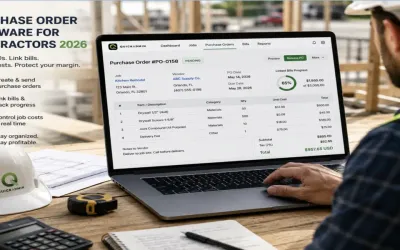
- Purchase Order Software for Contractors
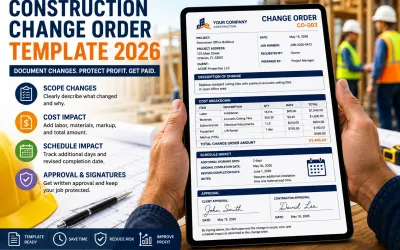
- Construction Change Order Template 2026
- General Contractor Invoice Template with Change Orders
- Best drywall estimating software for small contractors
- How to price drywall jobs
Every one of these articles reinforces the same workflow: estimate accurately, control purchases, link bills, invoice clearly, and review job profit.
Conclusion: job profit needs a system
A contractor can win the estimate, finish the work, send the invoice, and still lose margin. It happens whenever job costs are not tracked clearly.
Labor creeps up. Materials change. Bills arrive late. Purchase orders go unmatched. Change orders get forgotten. Invoices fail to reflect the real scope. Accounting sees the totals, but you miss the job-level story, and the story is where the profit actually lives.
Job costing software fixes that visibility problem. With QuickAdmin, small contractors can create the job, build the estimate, create purchase orders, link bills, track invoices, document change orders, attach files, and review the whole project from one connected workflow. That is how you protect your margin before the project is already over, not after.
The routine is simple: create the job, estimate the work, track the cost, link the bill, invoice the client, and review the profit. Do that consistently, and you stop guessing and start managing every job with real control.
FAQ
What is job costing software for small contractors?
Job costing software for small contractors helps track estimated costs, actual labor, materials, bills, purchase orders, invoices, change orders, and profit by individual job.
Why do small contractors need job costing?
Small contractors need job costing because a job can look profitable from the invoice total while losing money through untracked labor, material overruns, vendor bills, change work, and unpaid extras.
What should job costing software track?
Job costing software should track estimates, invoices, bills, purchase orders, labor, materials, subcontractors, cost codes, change orders, payments, and profit margin by project.
Can QuickAdmin help track job costs?
Yes. QuickAdmin helps contractors organize jobs, estimates, invoices, purchase orders, bills, files, notes, and QuickBooks connected workflows so job costs are easier to review.
What is the difference between job costing and accounting?
Accounting shows the financial position of the business. Job costing shows whether a specific project is profitable by comparing estimated costs, actual costs, billed amounts, and payments.
How often should contractors review job costs?
Small contractors should review job costs at least weekly for active projects and immediately after major purchases, labor spikes, vendor bills, approved change orders, and progress invoices.
Should purchase orders be part of job costing?
Yes. Purchase orders help contractors control committed costs before bills arrive and make it easier to compare vendor charges against approved purchasing amounts.
Does QuickAdmin integrate with QuickBooks?
Yes. QuickAdmin integrates with QuickBooks Online to help contractors streamline invoices, bills, and accounting related workflows.