
General Contractor Invoice Template with Change Orders
Use this general contractor invoice template to bill original scope, change orders, payments, retainage, and job costs clearly.
by Eng. José Manuel Siso Colmenares • 5/9/2026
General Contractor Invoice Template with Change Orders
Updated: May 9, 2026.
You finished the walkthrough, priced the original scope, and started the job, and then the client asked for three changes. One wall moved, one bathroom got upgraded, and one damaged area surfaced after demolition.
The job keeps moving, but the billing is now a mess. The original contract says one number, the client remembers another, and your crew has already performed the extra work. Your subcontractor sent a bill, your supplier invoice is due, and your final invoice somehow has to explain all of it without sparking a payment dispute.
By the end of this guide, you will know how to build a general contractor invoice template that lays out original scope, approved change orders, previous payments, retainage, and the final balance due in one clear structure.
💡 Quick answer: A general contractor invoice template should separate original contract work from approved change orders, show previous payments, list retainage when applicable, and make the final balance easy to verify.
Why general contractor invoices become confusing
General contractors juggle a lot of moving parts. A simple invoice app might be fine for a handyman job or a one-day service call, but general contracting work usually carries far more detail:
- Original scope.
- Labor.
- Materials.
- Subcontractors.
- Allowances.
- Permits.
- Purchase orders.
- Bills.
- Change orders.
- Retainage.
- Progress payments.
- Final payment.
- Project files.
- Client approvals.
That complexity is normal. The trouble starts when the invoice fails to explain it.
Construction spending in the United States runs at a massive scale: the U.S. Census Bureau estimated March 2026 construction spending at a seasonally adjusted annual rate of $2,185.5 billion, 1.6 percent above March 2025. U.S. Census Construction Spending With that much work flowing through the market, small documentation mistakes get expensive fast. For a general contractor, the invoice is not just a payment request, it is part of project control.
The change order problem
A change order is a written agreement that modifies the work, the contract amount, or the project time. AIA Contracts explains that change order related documents are used when work changes, cost changes, or the schedule changes. AIA Contracts change order fundamentals
That sounds simple, but on real jobs it gets messy. A client approves an upgrade verbally. A superintendent asks your crew to open a wall. A subcontractor submits extra labor. A hidden condition demands immediate work. A supplier changes material cost. A designer revises a drawing. If your invoice does not show those changes separately, the client can easily assume you are overbilling.
💡 Contractor rule: Do not let extra work hide inside the final invoice. If the scope changed, the invoice should show what changed, when it was approved, and how it affected the total.
What a general contractor invoice template should include
A strong general contractor invoice template makes the project easy to audit at a glance. With one look, the client should be able to answer four questions:
- What was the original contract amount?
- What change orders were approved?
- What has already been paid?
- What is due now?
Leave any of these unanswered and payment slows down. Here is what each section should contain.
Contractor and client information
Start with the basics so the invoice can’t be mistaken for anyone else’s. Include:
- Contractor company name.
- Business address.
- Phone number.
- Email.
- License number when applicable.
- Client name.
- Client billing address.
- Project address.
- Invoice number.
- Invoice date.
- Due date.
- Payment terms.
This section looks simple, but it heads off a lot of confusion. General contractors deal with property managers, owners, investors, developers, builders, and insurance-related repairs, and the billing contact is rarely the same person who approved the work. That is exactly why the client and billing details have to be crystal clear.
Project information
A general contractor invoice also needs project-level details. Add:
- Job name.
- Project address.
- Billing period.
- Contract reference.
- Estimate reference.
- Purchase order reference when applicable.
- Change order references.
- Project manager.
- Scope summary.
Example:
Project: Unit 204 renovation
Project address: 2200 Oak Street, Orlando, FL
Billing period: April 1 to April 30, 2026
Original contract: EST 2026 0412
Invoice: INV 2026 0509
This lets both sides connect the invoice to the correct job without any guesswork.
Original contract amount
Keep the original contract amount front and center. For example:
Original approved contract amount: $48,500Never make the client dig through an old estimate to find it. Put the number right on the invoice.
Approved change orders
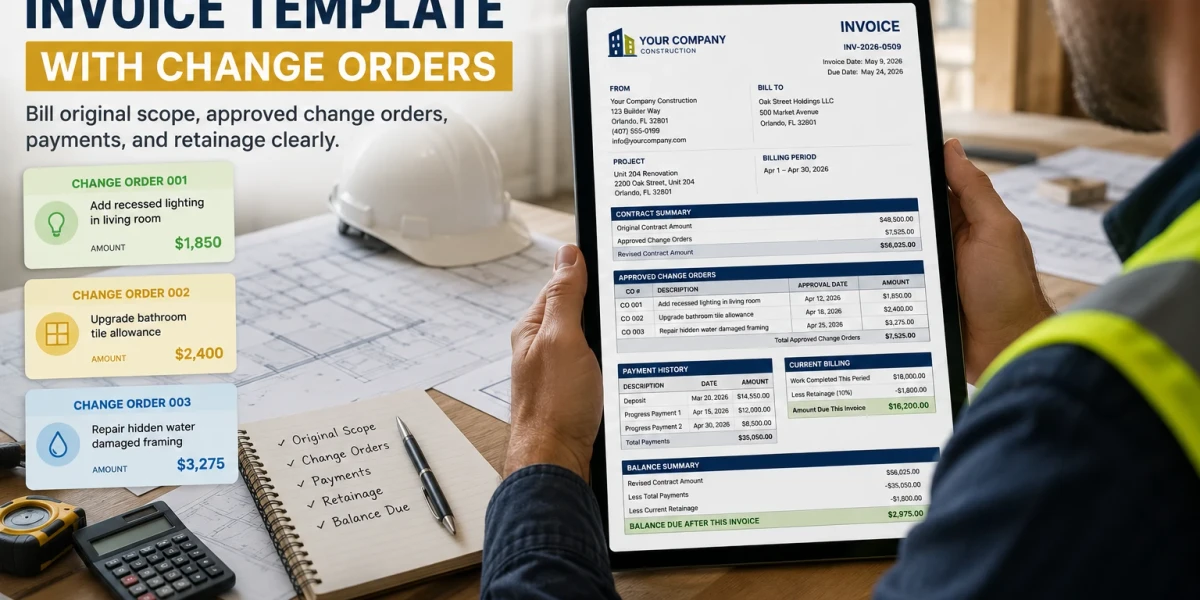
Change orders deserve their own section, never mixed in with the original scope. A clean format looks like this:
| Change order | Description | Approval date | Amount |
|---|---|---|---|
| CO 001 | Add recessed lighting in living room | Apr 12, 2026 | $1,850 |
| CO 002 | Upgrade bathroom tile allowance | Apr 18, 2026 | $2,400 |
| CO 003 | Repair hidden water damaged framing | Apr 25, 2026 | $3,275 |
Total approved change orders: $7,525
The updated contract value becomes:
$48,500 original contract + $7,525 approved change orders = $56,025 revised contractProcore’s guide to the AIA G701 change order explains that the form describes how the work changes, how much the change costs, and how much time the work adds. Procore AIA G701 guide Your invoice should follow that same logic.
Previous payments
Show previous payments clearly. For example:
| Payment | Date | Amount |
|---|---|---|
| Deposit | Mar 20, 2026 | $14,550 |
| Progress payment 1 | Apr 15, 2026 | $12,000 |
| Progress payment 2 | Apr 30, 2026 | $8,500 |
Total previous payments: $35,050
Listing these out prevents double-billing concerns and helps the client see exactly why the remaining balance is what it is.
Retainage
Some construction jobs include retainage, a percentage held back until a milestone or project completion. For example:
Retainage: 10 percent of current billingIf retainage applies, give it its own line, never bury it. For example:
| Billing item | Amount |
|---|---|
| Current work completed | $18,000 |
| Less retainage 10 percent | $1,800 |
| Amount due this invoice | $16,200 |
If no retainage applies, say so plainly:
Retainage: Not applicableEither way, the goal is clarity.
Current balance due
The final section should be dead simple. For example:
| Summary | Amount |
|---|---|
| Original contract | $48,500 |
| Approved change orders | $7,525 |
| Revised contract amount | $56,025 |
| Previous payments | $35,050 |
| Current invoice amount | $16,200 |
| Remaining balance after this invoice | $4,775 |
A busy client should be able to understand the whole invoice in under a minute.
General contractor invoice template example
Here is a practical invoice structure you can copy and adapt.
GENERAL CONTRACTOR INVOICE

Contractor:
QuickBuild Renovations LLC
123 Main Street
Orlando, FL 32801
License: ABC123456
Email: billing@example.com
Phone: 407 555 0199

Client:
Oak Street Holdings LLC
Billing address: 500 Market Avenue, Orlando, FL 32801
Project address: 2200 Oak Street, Unit 204, Orlando, FL 32801

Invoice:
Invoice number: INV 2026 0509
Invoice date: May 9, 2026
Payment terms: Net 15
Due date: May 24, 2026

Project:
Job name: Unit 204 renovation
Billing period: April 1 to April 30, 2026
Original estimate: EST 2026 0412
Contract summary
| Description | Amount |
|---|---|
| Original contract amount | $48,500 |
| Approved change orders | $7,525 |
| Revised contract amount | $56,025 |
Approved change orders
| CO number | Description | Approval date | Amount |
|---|---|---|---|
| CO 001 | Add recessed lighting in living room | Apr 12, 2026 | $1,850 |
| CO 002 | Upgrade bathroom tile allowance | Apr 18, 2026 | $2,400 |
| CO 003 | Repair hidden water damaged framing | Apr 25, 2026 | $3,275 |
Current billing
| Item | Description | Amount |
|---|---|---|
| Progress billing | Labor and materials completed through Apr 30 | $18,000 |
| Retainage | Less 10 percent retainage | $1,800 |
| Current amount due | Current billing less retainage | $16,200 |
Payment history
| Payment | Date | Amount |
|---|---|---|
| Deposit | Mar 20, 2026 | $14,550 |
| Progress payment 1 | Apr 15, 2026 | $12,000 |
| Progress payment 2 | Apr 30, 2026 | $8,500 |
Invoice balance
| Summary | Amount |
|---|---|
| Revised contract amount | $56,025 |
| Less previous payments | $35,050 |
| Less current retainage | $1,800 |
| Current amount due | $16,200 |
| Remaining balance after payment | $2,975 |
Notes
This invoice includes only approved work completed during the billing period listed above. Additional work requested after April 30, 2026 will be billed separately after written approval.That format is far stronger than sending a single mystery line like:
Renovation work completed: $16,200The detailed version protects you and helps the client approve faster, because there is nothing left to question.
How to invoice change orders without creating disputes
Change orders turn into disputes when they are vague. A vague change order says:
Extra bathroom work: $2,400A strong change order says:
CO 002: Upgrade bathroom tile allowance from standard ceramic tile to porcelain tile selected by owner. Includes material cost difference, additional setting material, and added installation labor. Approved April 18, 2026. Amount: $2,400.That version is much harder to argue with.
Use a change order number
Every change order should carry its own number, such as CO 001, CO 002, and CO 003. That number is what lets you match up:
- Client approval.
- Field notes.
- Subcontractor bill.
- Supplier receipt.
- Invoice line item.
- QuickBooks record.
- Project file.
So when the client calls about a charge, you can answer in one breath:
That item is CO 002, approved April 18 for the bathroom tile upgrade.That sounds organized because it is organized.
Include approval details
Change order invoicing lives or dies on proof, so include:
- Approval date.
- Approved by.
- Scope description.
- Price.
- Schedule impact.
- Related photos or files when useful.
Levelset explains that change orders help document scope changes and can reduce disputes when work, cost, or timing changes. Levelset change order guide A verbal yes feels fast in the field, but a written approval is what actually protects you.
Separate pending changes from approved changes
Never invoice a pending change order as if it were approved. Sort them into three buckets:
| Status | Meaning | Invoice treatment |
|---|---|---|
| Pending | Sent to client, not approved yet | Do not bill as approved |
| Approved | Client approved scope and price | Can be billed |
| Completed | Work performed | Can be billed based on terms |
If a change is urgent, document it on the spot. For example:
Emergency framing repair required due to hidden water damage discovered after demolition. Work authorized by client representative before proceeding. Photos attached.The more specific the record, the easier the eventual invoice conversation becomes.
How to create this invoice workflow in QuickAdmin
QuickAdmin helps general contractors because it keeps all the project information connected. You are not just generating a one-off invoice, you are managing a job from start to finish.
For general contractors, the workflow looks like this:
- Create the job.
- Create the estimate or invoice inside the job.
- Add the original scope.
- Add approved change orders.
- Attach notes and files.
- Send the invoice.
- Track payment.
- Sync invoice information with QuickBooks when needed.
Step 1: Create the job
Start by creating a job for the project. Use clear, specific job names, for example:
- Unit 204 renovation.
- Oak Street bathroom remodel.
- Multifamily repair phase 2.
- Kitchen renovation, Smith residence.
- Commercial office buildout.
- Water damage repair, Building C.
- Exterior repair package.
Then enter the project address. From here, the job record keeps your estimates, invoices, files, notes, client information, and change orders all connected, which matters a lot for general contractors, since the work so often changes after demolition, inspection, or client selection.
While you are in the job, create or connect the client profile and save:
- Client name.
- Email.
- Phone number.
- Billing address.
This pays off with homeowners, property managers, developers, builders, and repeat commercial clients alike. A saved client record prevents typos and speeds up every future invoice.
Step 2: Create the invoice inside the job
With the job created, build the invoice directly from that job record. Add the invoice title and confirm the job selection, then fill in the billing period, payment terms, scope description, labor and materials, approved change orders, notes, and exclusions.
Building it this way keeps the invoice tied to the correct project, client, job address, billing period, and approved work.
Step 3: Add the original contract scope
Begin with the approved scope. For example:
Original scope includes demolition, framing repairs, drywall repair, interior painting, bathroom tile installation, fixture installation, and final cleanup for Unit 204.Then add the original contract amount:
Original contract amount: $48,500This gives the invoice a clear baseline to build on.
Step 4: Add approved change orders
Add change orders as separate line items. For example:
| Change order | Scope | Amount |
|---|---|---|
| CO 001 | Add recessed lighting in living room | $1,850 |
| CO 002 | Upgrade bathroom tile allowance | $2,400 |
| CO 003 | Repair hidden water damaged framing | $3,275 |
Never fold these into the original contract amount. Separate line items make the whole invoice easier to review.
Step 5: Attach files and notes
Back up the invoice with files and notes. Useful attachments include:
- Approved estimate.
- Signed change order.
- Photos before work.
- Photos after work.
- Supplier receipts.
- Subcontractor bills.
- Inspection notes.
- Client approval email.
- Punch list items.
The point is not to overwhelm the client, but to keep the backup in the job record in case a question comes up later.
Step 6: Send and track the invoice
Send the invoice with a clear subject line. For example:
Invoice INV 2026 0509 for Unit 204 renovation and approved change ordersInside the message, add a short, friendly note:
Attached is the current invoice for Unit 204. It includes the original contract progress billing and approved change orders CO 001, CO 002, and CO 003. Payment is due according to the terms listed on the invoice.A clear message like this cuts down the back-and-forth before it starts.
QuickAdmin vs a simple invoice template
A downloadable template can help you format a document, but it cannot manage the job around it, and general contractors almost always need more than a blank template.
| Feature | Basic invoice template | Spreadsheet | QuickAdmin |
|---|---|---|---|
| Create invoices | Yes | Manual | Yes |
| Save client details | Yes | Manual | Yes |
| Organize by job | No | Manual | Yes |
| Add change orders | Manual | Manual | Yes |
| Attach files | No | Limited | Yes |
| Track payments | Yes | Manual | Yes |
| Convert estimate to invoice | No | No | Yes |
| Keep job notes | No | Manual | Yes |
| Mobile access | Yes | Limited | Yes |
| QuickBooks integration | No | No | Yes |
| Built for contractor workflow | No | No | Yes |
A template is a document; QuickAdmin is a workflow. That gap really shows the moment the job changes.
General contractor invoice mistakes to avoid
A good invoice gets you paid; a bad one just generates questions. These are the mistakes general contractors should steer clear of.
Mistake 1: Combining original scope and change orders
Never collapse everything into one vague line.
Bad:
Renovation labor and materials: $56,025Better:
Original contract: $48,500
Approved change orders: $7,525
Revised contract: $56,025
Broken out like this, the client can actually see where the increase came from.
Mistake 2: Billing unapproved extras
Never invoice unapproved extras as if they were approved change orders, it is a fast way to damage trust. When something is still open, put it in a separate pending section instead. For example:
Pending change request: Additional closet shelving, not included in current invoice.That keeps the client informed without muddying the current bill.
Mistake 3: Not showing previous payments
If the client already paid a deposit or a progress billing, show it. Do not make them dig through their bank records to reconcile your invoice, a clear payment history makes the balance easy to approve.
Mistake 4: Forgetting retainage
When retainage applies, show it clearly; when it does not, leave it off entirely. Retainage confuses clients fastest when it is hidden or calculated inconsistently from one invoice to the next.
Mistake 5: Weak payment terms
Avoid vague terms like:
Payment due soon.Use clear terms:
Payment due within 15 days of invoice date.or:
Balance due upon completion.Your cash flow depends on this kind of clarity. Slow payment remains a major issue in construction, Rabbet’s 2024 Construction Payments Report put the cost of slow payments to the U.S. construction industry at $280 billion. Rabbet 2024 Construction Payments Report That is why clean invoicing is not busywork; it is direct cash flow protection.
Change order invoice language you can copy
Keep these short clauses on hand and drop them into your invoice notes as needed.
Approved change order clause
Approved change orders listed on this invoice were requested and approved separately from the original contract scope. Each approved change order adjusts the project total shown in the contract summary.Pending work clause
Pending change requests are not included in the current invoice unless specifically listed as approved change orders.Hidden condition clause
Hidden or unforeseen conditions discovered after work begins may require a written change order before additional work proceeds.Material price clause
Material pricing is based on supplier costs available at the time of approval. Changes in selected materials, supplier availability, or delivery conditions may affect final pricing.Payment terms clause
Payment is due according to the terms listed on this invoice. Late or delayed payments may affect scheduling, material ordering, and project continuation.These clauses are practical language to make the invoice clearer, not legal advice. For contracts, lien rights, retainage rules, or legal notices, use the language required in your state and check with a qualified professional when needed.
Original contract vs change order vs invoice
Clients confuse these documents all the time, so it helps to spell out the difference clearly.
| Document | When it is used | Purpose |
|---|---|---|
| Estimate | Before approval | Shows expected scope and price |
| Contract | Before work starts | Defines agreed scope, terms, and obligations |
| Change order | During the job | Documents approved changes to scope, price, or time |
| Invoice | During or after work | Requests payment for approved billable work |
| Receipt | After payment | Confirms payment was received |
A table like this helps clients understand why they are receiving multiple documents, and it quietly positions you as organized and professional.
Example: progress invoice with change orders
Here is a sample general contractor progress invoice from start to finish.
- Project: kitchen and bathroom renovation
- Original contract: $72,000
- Approved change orders: $9,800
- Revised contract: $81,800
- Billing type: progress invoice
- Retainage: 10 percent
Contract summary
| Item | Amount |
|---|---|
| Original contract | $72,000 |
| CO 001 Cabinet layout revision | $3,200 |
| CO 002 Plumbing relocation | $2,850 |
| CO 003 Electrical upgrade | $1,950 |
| CO 004 Tile allowance upgrade | $1,800 |
| Revised contract amount | $81,800 |
Progress billing
| Billing item | Amount |
|---|---|
| Work completed this period | $28,000 |
| Less retainage 10 percent | $2,800 |
| Current invoice amount | $25,200 |
Payment history
| Payment | Amount |
|---|---|
| Deposit | $21,600 |
| Previous progress payment | $18,000 |
| Total paid before this invoice | $39,600 |
Balance summary
| Summary | Amount |
|---|---|
| Revised contract | $81,800 |
| Total paid before this invoice | $39,600 |
| Current invoice amount | $25,200 |
| Remaining contract balance after payment | $17,000 |
The structure is clear at a glance: it tells the client what changed, what was paid, what is due now, and what still remains.
Related guides for stronger contractor workflows
To build a stronger estimate-to-invoice system around your billing, explore these related QuickAdmin guides:
Every one of these articles reinforces the same workflow: estimate accurately, invoice clearly, track job costs, and keep billing organized.
Conclusion: a good invoice protects the job
A general contractor invoice is more than a bill, it is the financial story of the job. A good one shows what was originally approved, what changed along the way, what has been paid, what is being billed now, and what still remains.
The benefits stack up quickly. When change orders are documented clearly, clients understand the invoice faster. When previous payments are shown, the balance is easy to verify. When retainage is listed correctly, accounting stays clean. And when the invoice is tied to the job, files and notes are always within reach. That is exactly the workflow QuickAdmin is built to support.
The routine is simple: start with the job, create the invoice inside it, list the original scope, separate the approved change orders, show payments and retainage, and send a clear invoice. Do that consistently, and you reduce disputes, protect cash flow, and get paid with far less back-and-forth.
FAQ
What is a general contractor invoice template?
A general contractor invoice template is a structured billing document that helps contractors charge for original contract work, labor, materials, approved change orders, payments received, retainage, taxes, and final balance due.
How should general contractors invoice change orders?
General contractors should invoice change orders as separate approved items with a change order number, description, approval date, amount, schedule impact, and updated contract total.
Should change orders be listed separately on an invoice?
Yes. Listing change orders separately helps the client understand what was outside the original scope and reduces disputes when the final invoice is reviewed.
Can QuickAdmin create invoices with change orders?
Yes. QuickAdmin helps contractors organize jobs, estimates, invoices, files, change orders, and client information so approved work can be billed more clearly.
What should a construction invoice include?
A construction invoice should include contractor information, client information, project address, invoice number, billing period, original contract amount, approved change orders, previous payments, retainage, taxes, balance due, and payment terms.
What is the difference between an estimate and an invoice?
An estimate is a pre work proposal that explains expected cost. An invoice is a payment request for completed or approved billable work.
What is the difference between a change order and an invoice?
A change order documents an approved change to scope, cost, or time. An invoice requests payment for approved billable work, which may include original contract work and approved change orders.
Does QuickAdmin integrate with QuickBooks?
Yes. QuickAdmin integrates with QuickBooks Online to help contractors sync invoices and streamline bookkeeping.